Dashboard overview
Scroll through the screens, or jump to any screen using the links below each one.
Tap or click any screen to enlarge it. Choose Full size to inspect the detail.
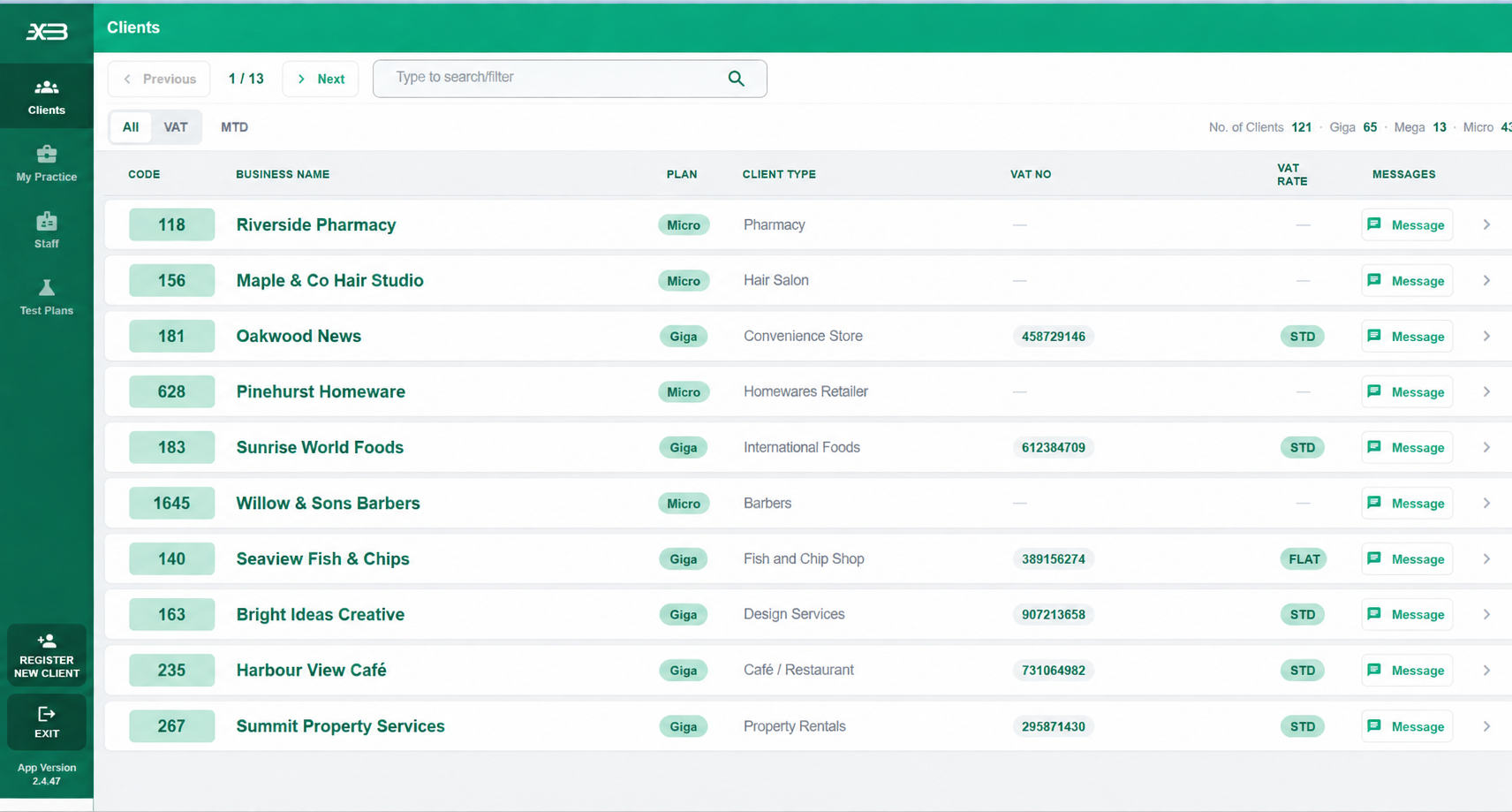
Your clients, together
Find a client and open their records from one place. The list shows the app plan, business type and VAT details alongside a message shortcut.
- Search or filter the client list.
- Switch between All, VAT and MTD views.
Jump to a screen
The client profile
Keep the client's contact details, business address and legal structure together, with access to the rest of their account.
- Move between basic information, plan selection, periods and opening balances.
- Open the client's cashbook or VAT area from the side navigation.

Jump to a screen
Set up accounting years and periods
Set the accounting year dates and the periods within each year from the client profile.
- Add a new accounting year.
- Review the starting and ending dates for each period.

Jump to a screen
Review the month's takings
See daily takings across the client's sales types, with the amounts allocated to cash, bank and online accounts.
- Move between months, quarters and the year end.
- Select a date to add an entry, or an amount to review an existing entry.

Jump to a screen
Other income
Review income outside normal takings in its own monthly view, alongside the account receiving the money.
- See the income type, amount and account for each entry.
- XB generates the entry reference automatically.

Jump to a screen
Supplier and stock purchases
Review purchases by date and supplier, with net, VAT and gross columns and the account used for payment.
- Check the month's totals beneath the entries.
- Use notes and checked markers while reviewing the records.

Jump to a screen
Expenses and other payments
See the client's other payments by expense type and date, with the payment account and monthly totals in the same view.
- Review net, VAT and gross amounts.
- Add notes and mark entries as checked.

Jump to a screen
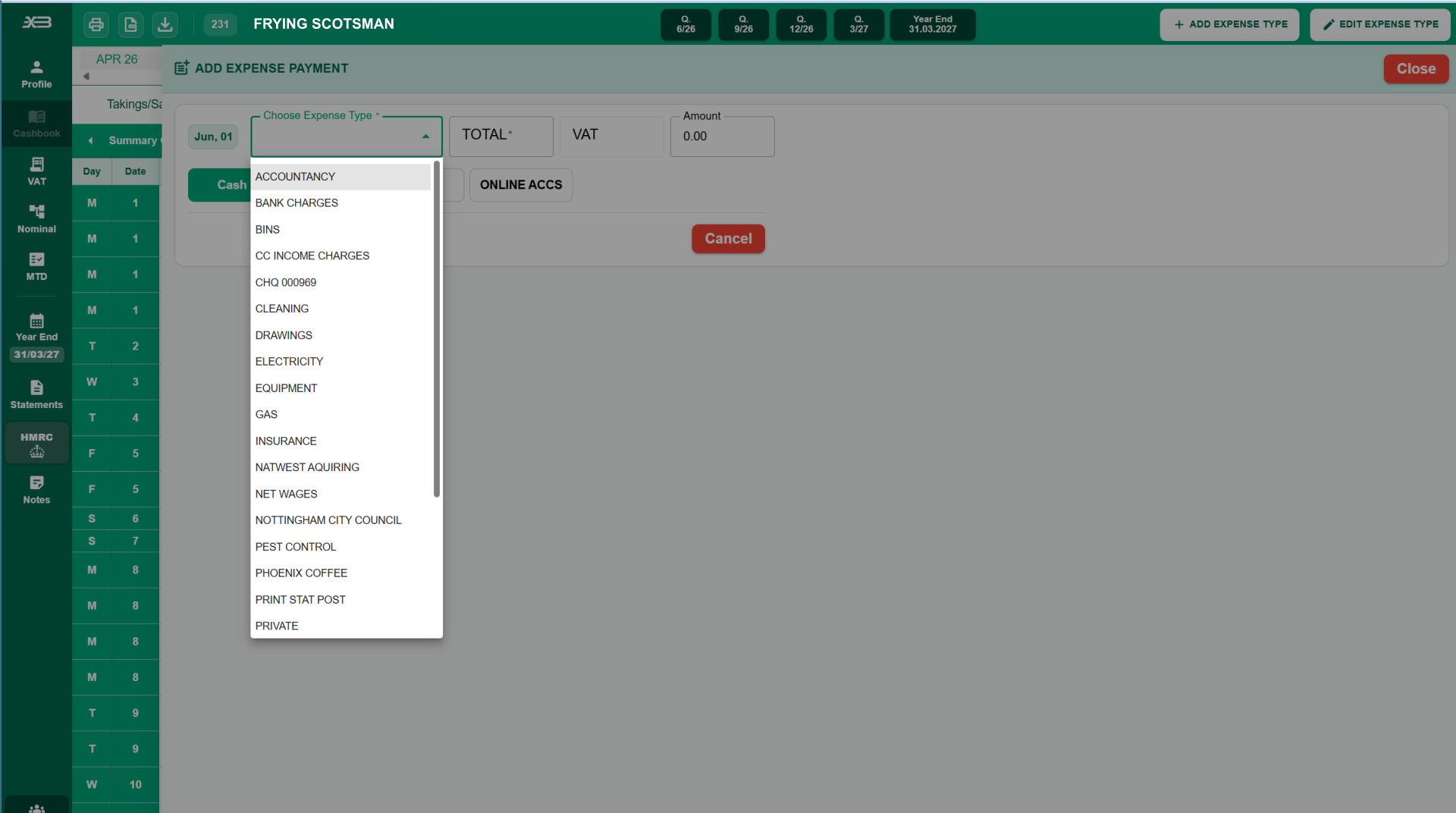
Enter an expense payment
Choose the expense type, enter the amount and select the account used to pay it.
- Use the expense-type list to categorise the payment.
- XB generates the reference automatically.
Jump to a screen
Follow the money into the bank
Review manual and automatic deposits separately from takings, showing when money reaches the bank.
- See the deposit type, reference, amount and receiving account.
- For a bank deposit, enter the paying-in book reference or another reference for the deposit.

Jump to a screen
Reconcile the bank account
Review money in and out alongside the bank reconciliation figures for the selected account and period.
- Switch between automatic and manual bank reconciliation.
- Compare the statement balance with the XB balance and review the difference.

Jump to a screen
Review the VAT figures
View the VAT account and return figures together for the selected period, with outputs, inputs and adjustments alongside the return boxes. This example shows a return that has already been submitted, so Print has replaced Submit.
- Use the tabs above the VAT return boxes to view other VAT periods.
- Submit an unsubmitted return, or print one that has already been submitted.

Jump to a screen
Compare submitted and current VAT
The comparison screen places submitted figures beside the current figures and shows the differences by return box.
- See under and over differences side by side.
- Use the comparison note and print option.

Jump to a screen
Review the period summary
Bring takings, other income, purchases, payments and bankings together in a summary for the selected period.
- Compare the monthly figures with the period totals.
- Use the print and Excel download options.

Jump to a screen
Review the year summary
See the accounting year together, with the figures for each quarter alongside the annual totals.
- Review income, purchases, payments and bankings across the year.
- Download the summary to Excel or move to the nominal accounts.

Jump to a screen
Review the nominal accounts
Review the profit and loss accounts and balance sheet together, with opening balances, period movements and adjustment columns.
- See the debit and credit figures for each nominal account.
- Review the totals and difference at the bottom of the accounts.
